![logo-3.png]](https://support.greencheckverified.com/hs-fs/hubfs/logo-3.png?height=29&name=logo-3.png)
Narrative templates let your team standardize the language used across Monitoring reviews and FinCEN SARs. Instead of writing or rewriting a narrative from scratch every time, you build reusable templates with dynamic data points that auto-fill with account-specific information at the time of use. This article explains how templates work, how to build one, and how your team uses them when completing reports.
⚡️ Quick Start Guide
- Go to Settings → Narrative Templates.
- Click Create Template and choose whether it's for Monitoring or FinCEN SAR.
- Give the template a clear name and open the Builder.
- Write your narrative language and use the Insert Data Point button to add data points and sections where account-specific info should appear.
- Click Publish when the template is ready for your team to use.
- Easily insert the narrative into the report while completing it.
Access the Narrative Templates library
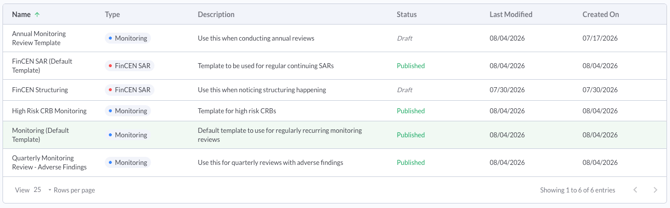
The Narrative Templates library lives in Settings → Narrative Templates. The library shows all templates your team has built or is working on, regardless of report type. Each row displays:
- Name — the template name
- Report Type — Monitoring or SAR
- Report Type — Helps differentiate between templates
- Status — Draft or Published
- Last Modified & Created On — when the template was created and modified
Templates for Monitoring and FinCEN SAR live in the same list, so you can see everything at a glance and filter by report type when needed.
What's included at launch
To make it easy to get started, your Green Check portal comes pre-loaded with two starter templates:
- Default Monitoring Review — the standard narrative your team uses today for Monitoring reviews
- Default FinCEN SAR — the standard narrative your team uses today for SAR filings
Both are fully editable. Use them as-is, tweak the language, or build entirely new templates alongside them.
📋 The starter templates are the same narratives your reviewers see today. If your team doesn't build anything new, everything continues to work exactly as it does now.
Create a new template
- From the library, click Create Template.
- Choose the report type: Monitoring or FinCEN SAR. This determines which data points are available in the builder.
- Enter a descriptive template name (e.g., "Adverse Findings Review" or "SAR — Priority Finding") and a description.
- Save to open the Builder, where you'll compose the narrative.
Every template has two tabs: Settings (name, report type, description, publish controls) and Builder (the narrative composition area).
Compose the narrative in the Builder
The builder is where you create your template. It works like a standard text editor with basic formatting options (bold, italic, underline, bulleted lists, numbered lists). Note that for FinCEN narratives, much of the formatting gets stripped out of the XML as they do not accept formatting.
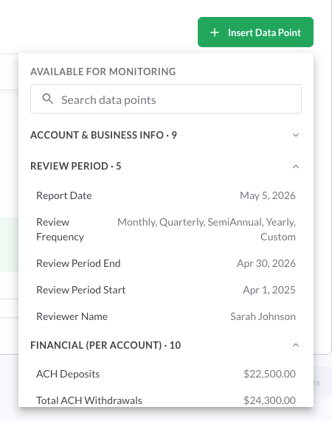
To insert a data point, click the Insert Data Point button in the top right of the editor. The picker opens with all available data points for that report type, organized by category (Account & Business Info, Review Period, Financial, and more). Click any data point to insert it at your cursor position.
Data points appear as colored chips in the editor so you can see at a glance what will auto-fill at render time. Write your narrative copy around the colored chips to finish your template.
Understand data points and sections
Data points come in two visual styles:
- Data points appear as small inline chips (e.g., Business Name, Review Period Start, Total Deposits, and many more). Each one resolves to a value pulled from the review.
- Sections appear as larger green-bordered blocks with a short description of what they render. Sections produce multi-line structured content, not a single value.
There are two Sections available:
- Accounts Included Section — Lists every location included in the review with its address.
- Account Activity Section — Renders a nested breakdown of activity per location, account, and payment type.
- Omitted Transactions Section — Lists all omitted transactions from the Monitoring Review you are performing
📋 Sections are visually distinct in the editor so you can see immediately that they will produce structured content rather than a single value. Each Section is labeled with a short description of what it renders.
Publish your template
Templates start as Draft and must be explicitly Published to become available for your team to use in reports. Drafts are saved automatically as you work but are not visible to reviewers.
- Confirm the template is ready.
- Click Publish to make the template available for your team.
- Once published, the template shows a green Published badge with the publish date.
📋 Only Published templates can be inserted into a Monitoring Review or SAR. Drafts remain hidden from reviewers until they are published.
Use a template in a Monitoring review or SAR
When completing a Monitoring Review or filing a FinCEN SAR, reviewers use the Insert Template dropdown to select from the published templates for that report type. The system automatically resolves every data point against the current review's data and inserts the fully rendered narrative into the report.
- Open the Monitoring review or start the FinCEN SAR filing
- Click Insert Template on the narrative field
- Choose the template that fits the situation
- The rendered narrative appears in the field with all data points auto-filled
- Edit anything from there, including deleting content you don't need
🌱 Reviewers can freely edit the inserted narrative. Templates provide a strong starting point, and reviewers trim, add, or reword from there.
Edit or republish a template
To update a published template:
- Open the template from the library
- Make your changes in the Builder
- Re-publish the template to make the updated version available to your team
Editing a published template moves it back to Draft status until you re-publish. Previously filed Monitoring reviews and SARs are not affected by template changes; each filed report stores the final narrative text at the moment it was completed.
Permissions
- Admins and Account Owners can create, edit, and publish narrative templates in Settings.
- Any user with permissions to view Monitoring reviews or FinCEN SARs can insert a published template into their report.
Tips for your team
✅ Start with the defaults. The pre-loaded starter templates match your current canned narratives. Duplicate the language you already use and tweak from there rather than rebuilding from scratch.
📋 Name templates by scenario, not by report. "Adverse Findings" or "Priority SAR" tells reviewers when to use it. "SAR Template 2" doesn't.
✅ Republish after edits. Editing a published template moves it back to a pending Draft state. Remember to re-publish so the updated version is available to your team.
Frequently Asked Questions
Are Monitoring and FinCEN templates in the same list?
Yes. All templates live in a single library at Settings → Narrative Templates. Each row shows the report type (Monitoring or SAR) so you can filter and find the template you need.
Can reviewers see Draft templates?
No. Only published templates appear in the Insert Template dropdown for reviewers. Also, if a template was previously published and has draft changes, only the most recently published version will render.
What happens to filed reports if I edit a template later?
Nothing. Each Monitoring review or SAR stores the final rendered narrative at the moment it was filed. Editing a template only affects inserted templates going forward.
Do I need to build separate templates for single-location and multi-location (MUO) accounts?
No. Data points and Sections automatically adapt to the review's account structure. The same template renders correctly whether the review covers one dispensary with one account or a multi-unit operator with several children.
Do templates share across financial institutions?
No. Templates are institution-specific. Nothing you build is visible to other FIs using Green Check.
What if a data point doesn't have data for the account being reviewed?
The rendered narrative will still complete, and reviewers can edit any missing content directly in the report before saving.
Can I duplicate or archive a template?
Not at launch. If you'd like to see these actions added, let us know via the feedback portal in the app or by contacting the Green Check Support team.
Who can create templates?
Admins and Account Owners. Anyone with view permissions on Monitoring reviews or FinCEN SARs can use a published template in their report.
For additional questions, contact the Green Check Support team.